00:30
First, your email. Easy.
No three-coffee form. Start with your email.
No technician to wait for. No new bank account. Set up your till, pair the app and apply for card payments. The dinosaur-sized manual? We skipped that.
No three-coffee form. Start with your email.
Open your email and confirm it’s you.
 Hugo
Phase 1 · Create your till
Hugo
Phase 1 · Create your till
Enter your Czech company ID. Hugo looks up the company in the register. Check the details.
Hugo
Phase 1 · Create your till
Name your venue and fill in its details. Hugo knows where it belongs.
Hugo
Phase 1 · Create your till
Paste your website or photograph the menu. Hugo suggests items; you check names and prices.
Hugo
Phase 1 · Create your till
Read and accept the terms. Your till is created. Pair the app and start taking cash.
Hugo
Phase 1 · Create your till
An empty wallet doesn’t mean an empty bank account. Try the other option — or start with cash and add cards later.
About five more minutes for the application. Have your ID handy. Approval happens separately.
Anti-money-laundering (AML) law asks everyone who wants to take cards: what you do, who is behind the company and whether you’re a politician — officially a “politically exposed person”. Hugo only asks on its behalf. No dirty money? You’ll be done in a moment.
Hugo
Phase 2 · Getting ready
Follow the identity-check instructions and provide the required documents. No trip across town.
Hugo
Phase 2 · Getting ready
Add your bank account, check the details and confirm the agreement. Your application goes for approval. Your clicking is done.
Hugo
Phase 2 · Getting ready
Once verification is approved and payments are activated, take cards on a supported Android device or Hugo terminal. Approval isn’t part of the five minutes. Red tape runs on its own clock, and not even Hugo can hurry it.
Hugo
After approval, you can take cards
Card payments active
Money to your bank account
Get the app on iPhone or Android and enter the pairing code from your administration. Both handle cash. For cards, use a supported Android device or Hugo terminal.
Till, cards and receipt printing in one. About five more minutes to order. Then we take over.
Choose a terminal with the till preconfigured and a built-in printer. Card payments work after approval and activation.
HugoShop
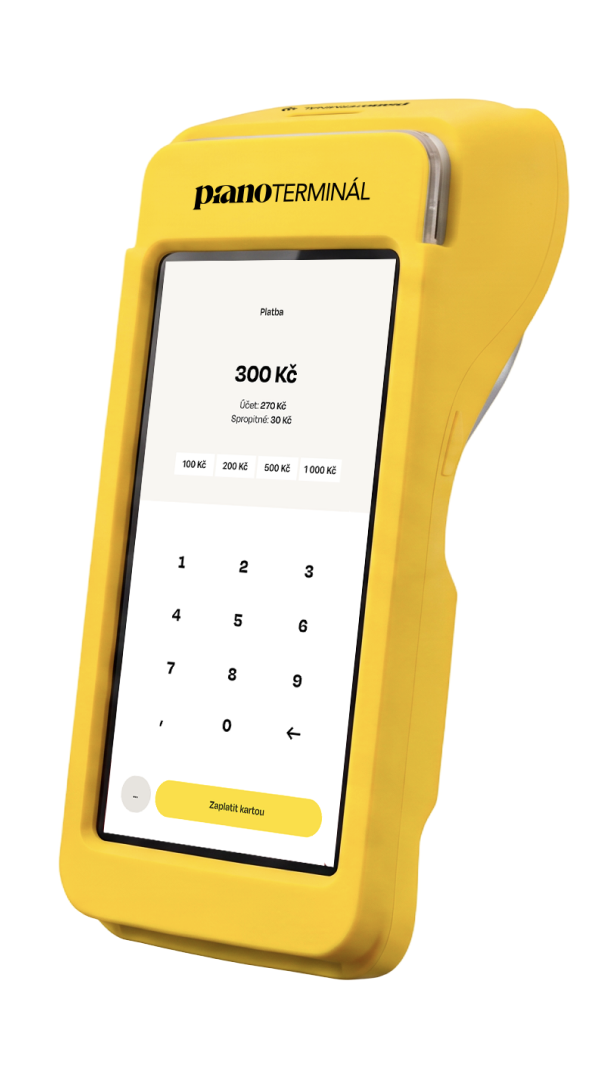 Hugo terminalTill + cards + printingAdd to basket
Add the terminal and check your order. The real basket shows the current price and shipping.
HugoShop1
1 × Hugo terminal
Everything in one
Enter your delivery details and pay. Order placed. Leave the screwdriver in the drawer.
HugoShop1
We deliver your preconfigured terminal. You’ll see delivery timing when ordering — the parcel isn’t racing the five-minute timer.
HugoShop1
The whole walkthrough in one video. In Czech, straight to the point. Pause whenever you need.
Start with the first step. If you get stuck, Hugo helps you right inside the app. No treasure hunt through a manual.
14 days free. No card needed.